Instagram Flash Filter AI Photo Editing Prompts – The “Flash” filter on Instagram is going incredibly viral. When applied, it illuminates the face with a sudden burst of light, slightly darkens the background, and gives the skin a radiant glow—making the photo look as if it were captured with a DSLR. However, the catch is that this filter is not available on every Instagram account. Many users are attempting to select this option within the app but are unable to find it. Furthermore, another issue currently arising—as many people have pointed out to me—is that you seem to be limited to using it only once per day. Given the filter’s immense popularity and the high volume of users trying to access it, I have come up with a better solution. I have a method that allows you to apply this effect an unlimited number of times—as often as you like—to as many different photos as you desire. We will achieve this using a Google Gemini prompt. I will also teach you exactly how to utilize this prompt to create your own viral-worthy photos just like these.
Details Of Instagram Flash Filter AI Photo Editing Prompts
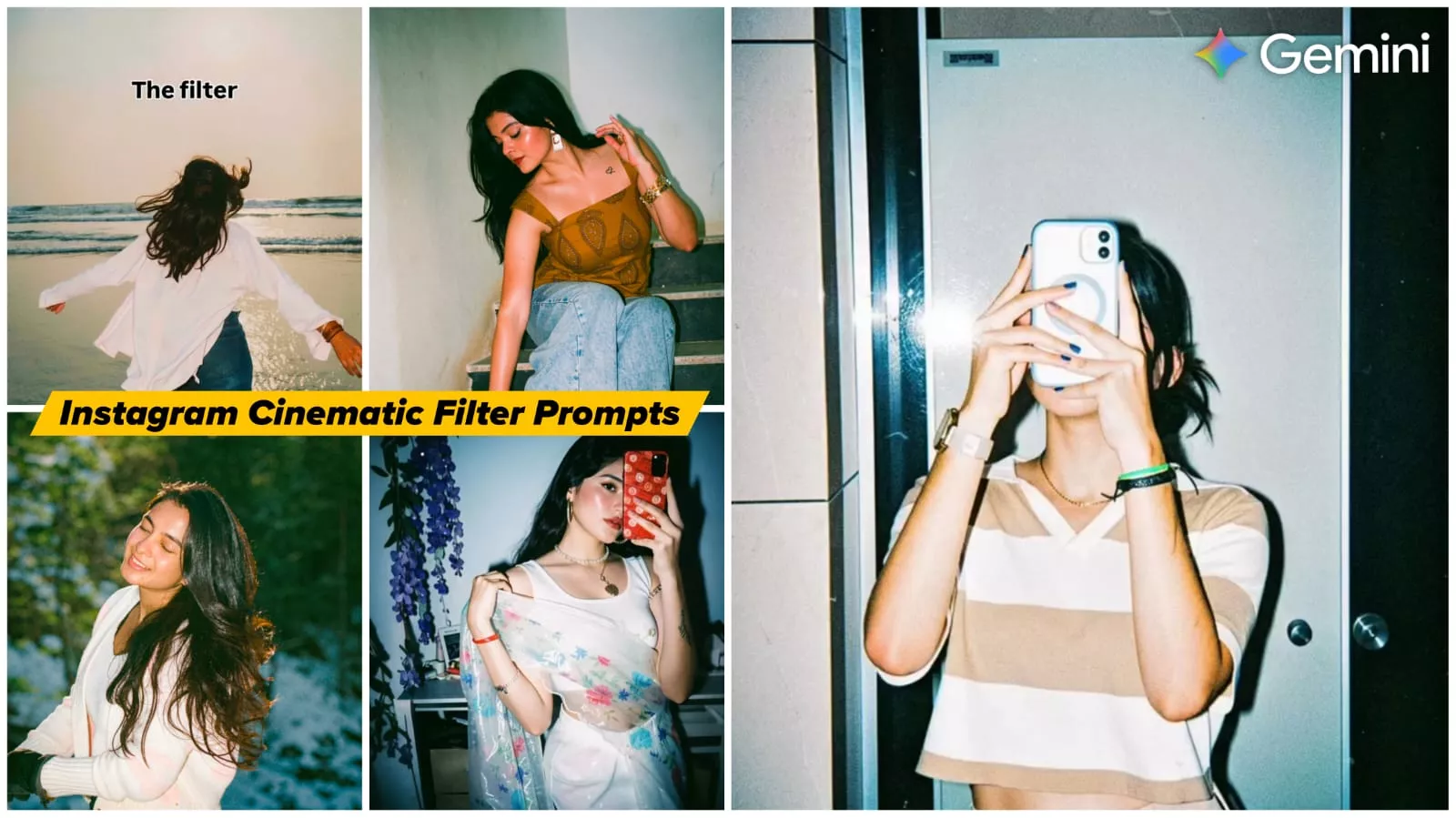
So, what exactly does the Instagram Flash filter do, and what does the final result look like? Essentially, it transforms a standard photograph into a cinematic image. It simulates the effect of a director’s spotlight—casting a focused beam of light onto your face while rendering the rest of the scene in a dark, cinematic tone. As I mentioned, the background remains dark—becoming slightly dimmed—while the contrast is simultaneously boosted. You will notice a stark visual distinction between your face and the background. It is this unique combination that makes the effect go viral; we will demonstrate how to apply this very filter using the “Buss From” tool, and we’ll show you how to do it yourself. Additionally, if you prefer to create this effect directly through the Instagram app, I will also explain how to do that.
Why Do You Sometimes Fail To Get Optimal Results?
The issue lies here: whenever you attempt to generate an image—particularly one of this nature—you must meticulously define every specific requirement. You need to clearly articulate exactly what the photo should contain and precisely what kind of lighting is desired. You cannot simply write vague instructions like “add a flashlight filter” or “make it look like Instagram”; the AI is not yet sophisticated enough to intuitively grasp such nuances or current trends. Instead, you must explicitly define and describe the specific elements you wish to incorporate. This ensures that your final result is not overexposed, that no unsightly white patches appear on the subject’s face, and that the background does not end up looking jarring or unnatural. After all, if the lighting and directional parameters are poorly defined, you certainly won’t achieve a satisfactory outcome. Therefore, whenever you intend to use a specific prompt, take the time to read through all its details carefully first. Verify that every aspect has been explained thoroughly and comprehensively; only then should you proceed to use it.
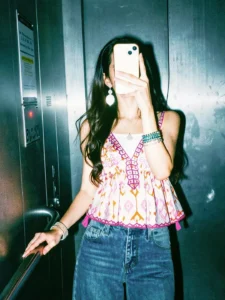
Apply a strong direct flash effect with high exposure and harsh lighting. Increase contrast and sharpness significantly. Add cool cyan/blue tones to shadows while keeping highlights slightly blown out. Skin tones should appear bright and slightly washed with a glossy flash look. Boost whites and reduce midtones for a punchy, high-fashion aesthetic. Add subtle noise and grain for a raw camera flash feel. Background should look darker and metallic with reflections enhanced. Overall look: paparazzi flash, night photography, bold, dramatic, Instagram restyle "flash" filter style.
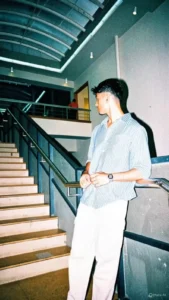
Apply a strong direct flash effect with controlled exposure. Increase contrast deeply with rich blacks and slightly crushed shadows. Add cinematic teal tones in shadows and warm orange tones in highlights (teal & orange look). Reduce overall brightness slightly while boosting color depth and saturation. Skin tones should remain warm, natural, and slightly glossy. Enhance texture and sharpness while keeping a soft highlight glow. Add subtle vignette and light grain for a cinematic feel. Background should appear darker, moody, and slightly desaturated with metallic reflections. Overall look: deep cinematic flash photography, dramatic, rich colors, Instagram restyle flash + cinematic blend.
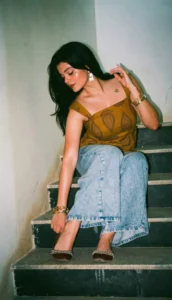
A high-contrast mirror selfie of a woman with long dark wavy hair. She is wearing a dusty blue off-the-shoulder long-sleeve crop top and high-waisted black trousers. She is holding a smartphone with a decorative case in front of her face, obscuring it. She stands against a vibrant red brick wall under a harsh overhead light that creates deep shadows and a cinematic film-noir vibe. The photo has a slightly grainy, 35mm film aesthetic with visible flash-glare and a cool-toned, moody atmosphere
How To Create With Instagram Flash Filter AI Photo Editing Prompts
Now, let me show you how to create photos like this. If you want to achieve high-quality results, the first step is to copy a specific style prompt from here. This section features various filters and distinct styles—categorized, for instance, as “Flash 1,” “Flash 2,” “Flash 3,” and so on. Simply copy the one you prefer. Next, head over to Google Gemini, paste the prompt you just copied, and then use the “+” option to select your best photograph. Once that is done, hit the “Generate” button. You will only need to wait a few seconds, as the results are delivered instantly. Review the output to verify whether the generated image meets your expectations and looks perfect. If you don’t get the desired result on your first attempt, try two or three more times; you are sure to achieve excellent results.
How To Create This Using Instagram
Now, if you wish to create this using Instagram—which is a very simple method—you can do so quite easily. Simply open the Instagram app and access your account. Navigate to the ‘Stories’ section and select a photo—specifically, the one you wish to use for your creation. Once you have selected the image, you will find an option labeled ‘Restyle.’ Tap on this option, and look towards the bottom of the screen; you will see a ‘Filters’ menu offering various stylistic adjustments. Browse through the options there until you locate a filter named ‘Flash.’ As soon as you select it, the effect will be applied to your photo, allowing you to utilize this trending filter.