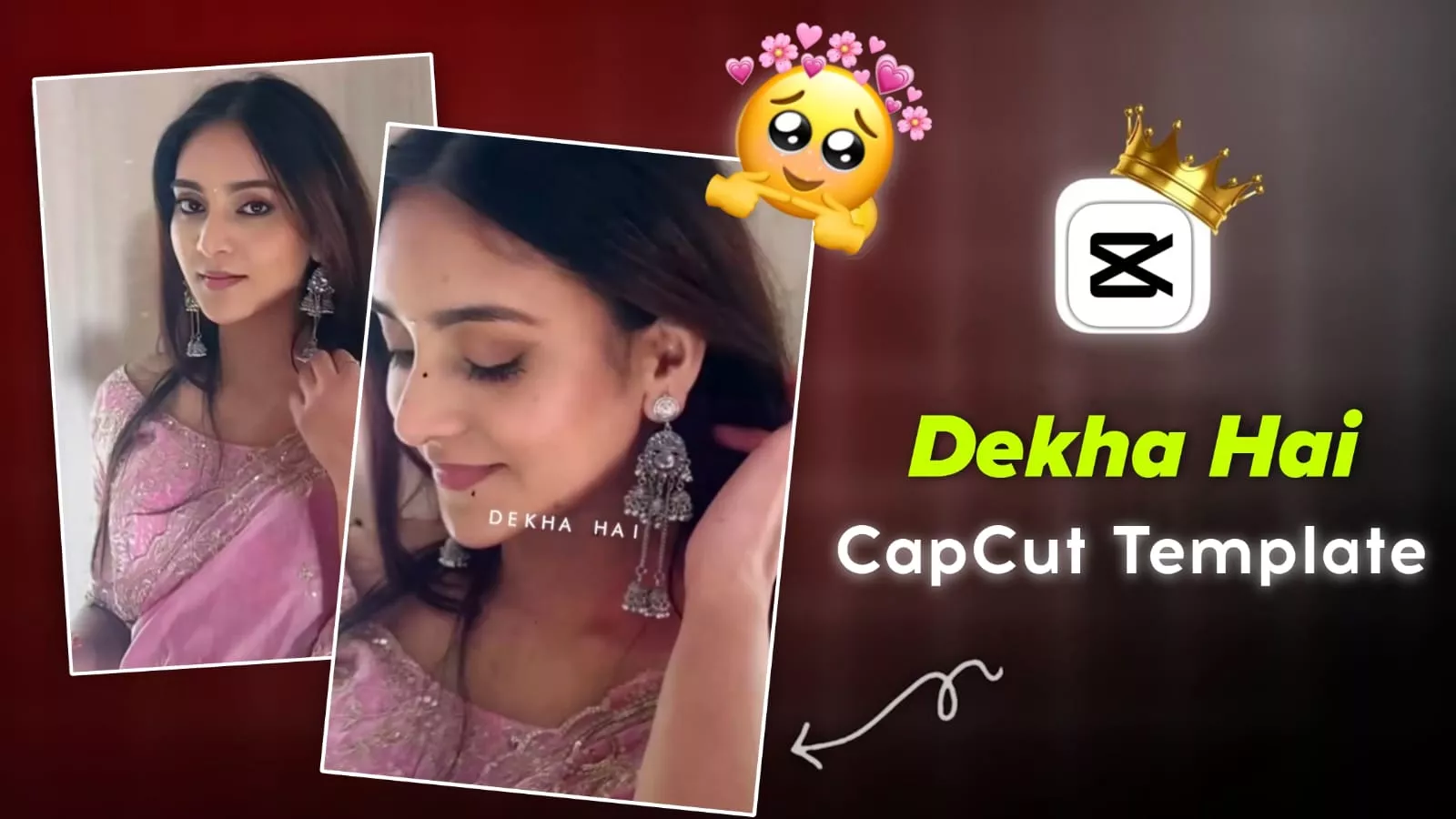
DeKha Hai Jabse Tumhe Capcut Template – Editing with lyrics is currently trending heavily on Instagram. You’ll notice that the video is different from a normal video and is posted on its own. These videos get the most likes, and if you combine them with any trending song and post them after that, the results are even better. In today’s article, we’ll learn how to create the kind of viral editing that’s currently going viral on social media and is based on a specific song. This song is also very trending. People are using different lyrical edits on it. I selected the one that’s most popular, so let’s learn. How can you create different types of videos and how can you create them using templates?
Details Of DeKha Hai Jabse Tumhe Capcut Template
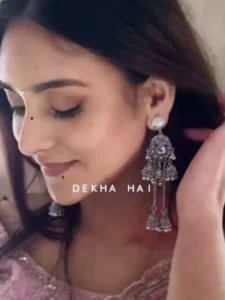
Look, if you want to make a video like this, you first need to understand it. See, it happens like this. I’ll explain. Once you understand it, you’ll get the idea. Initially, our video plays normally. There’s just music. The music plays for a few seconds, and then the lyrics are supposed to come in. What happens there? The last frame of the video stops completely. It was paused during editing. Then, the lyrics start appearing over the photo. Whatever lyrics are for the song, they start appearing over your photo. You don’t have to add any custom photos here. They’re automatically added by taking a screenshot from the video itself. Then, you’ll see a dust effect over the lyrics, which people also call the retro effect. After this, your video is complete. Your video is going to be made just like this.
Editing Process Of This Editing
To create this kind of video, you can apply two methods. First, manual editing and second, automatic editing. I’ll first tell you about manual editing. Then, I’ll explain the process of using this automatic template. If you want to do this kind of editing, simply add your video to Capcut and select the music part at the beginning. Leave the next part blank. What to do with the music coming in? You need to keep this part in the video. When the lyrics start appearing, you need to freeze the frame of your video. You’ll get an option to freeze it. You need to apply that frozen frame to the entire video. From there, type the lyrics in the next part. Go to the text section and type two to three words at a time. Then, write the next lyric. This way, you write all the lyrics. Then, add the feed animation to the lyrics section. Your video will be ready. You can even apply a retro effect to it, and the entire video will be finished.
How to Use DeKha Hai Jabse Tumhe Capcut Template
Now, let’s understand the template method. For this, we need the CapCut application. Open CapCut. Go to the templates section and search for the template. You can find it there, but sometimes it may not appear in the search. If you find it, we’ll provide a template for it. Simply click on “Check Template” here. The template will open directly within the CapCut application. A complete template will be displayed there. Click on it below and select a normal video clip. Once you select it, your video will be ready for editing. It will automatically freeze the last frame. Lyrics will start appearing on it. Just like that, your normal video is ready. Now you can export it. Keeping the export setting at 1080p 60fps is best for the Shorts platform.
Best Way For Record Your Clip
If you are using this type of video now. First of all your video should be recorded from a front camera or if you record from the back camera also. Here you have to record your half body video and you have to add a normal video in it with proper lighting and good color grading. What will happen due to this is that this video will match perfectly with your lyrics. If the quality of your video is not good. First add it to Capcut and from there you can enhance it by completing its editing. After doing this, now you can add it to the template in Capcut and you will get much better results.