Mahadev Hand Ai Video Editing – You’ll notice that Mahashivratri is coming soon, so some trends are going viral on social media that will surprise you. Some photos are going viral. Some videos are going viral, so I’ll tell you how you can create such viral videos, which are like you’re going somewhere with Lord Shiva. I’ll define this in detail later, because if I start explaining it here, even the first paragraph will be quite long. Let me give you an overview. In this article, we’ll teach you how to edit it. First, we’ll learn how to create an image. Then, we’ll teach you how to convert it to a video. It’s a complete process. You’ll need to read this article very carefully, because if you miss even one step, your video won’t be created.
Breakdown Of This Editing
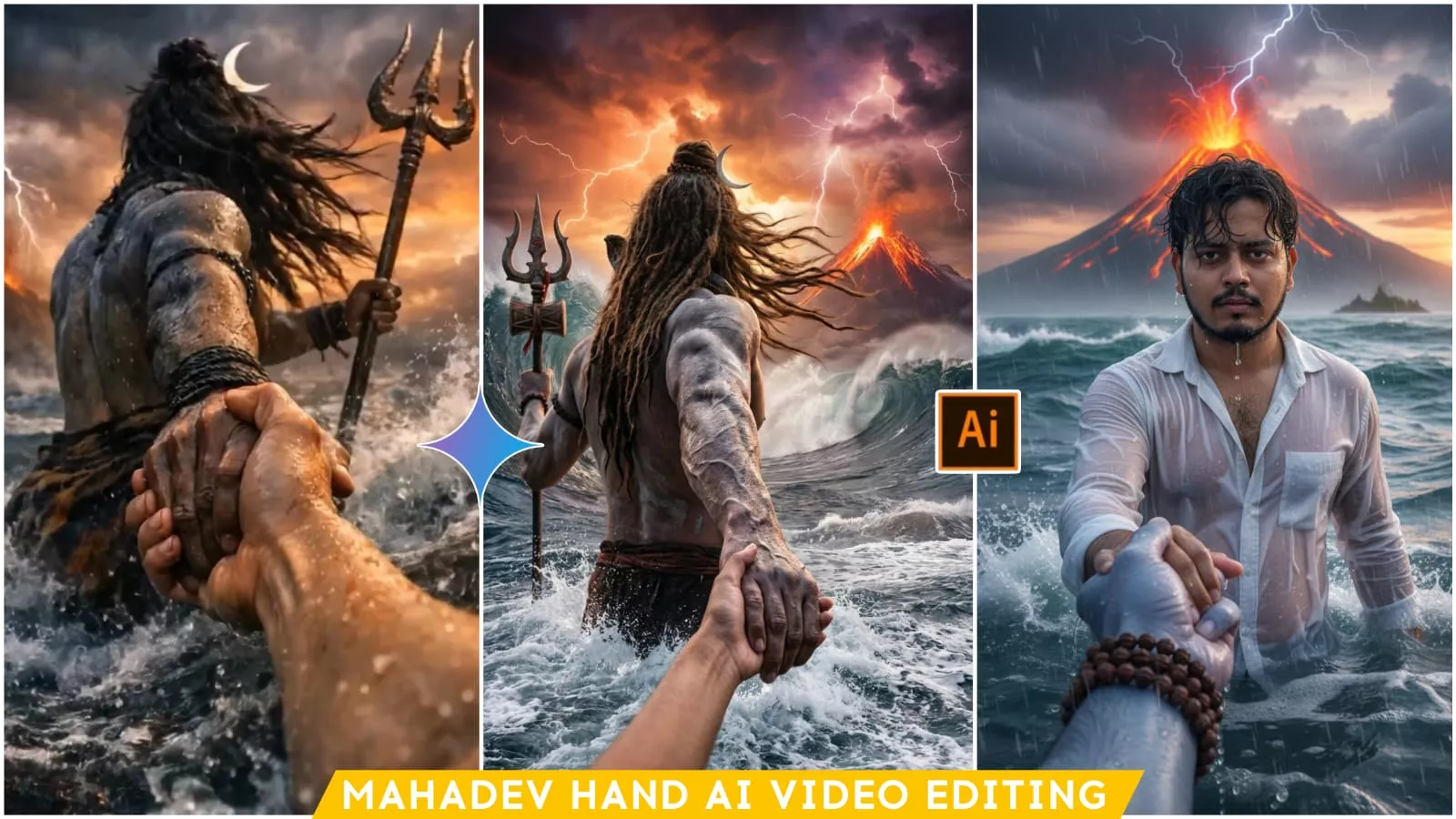
In this video, you’re seen going into the ocean. In the first video, your face isn’t shown. It shows the back of the Lord holding your hand. Then, he moves forward in the water, with you following behind. This isn’t revealed here. In the first video, you’re the one present. To reveal this, the second clip shows the camera rotating, as if recording a video of Mahadev from one side to the other. Now, if you rotate the camera from behind, it will appear above your face, and the camera will flip in the same way. Then, it will appear on your face, showing you holding Mahadev’s hand. He’s carrying you. We’ll create this and tell you how we can create similar videos using Google, Gemini, Chat, and Google+.
How To Create Ai Image First
First, we need to create a photo. So, understand that we’ll create two photos here. One is a simple one of Mahadev, and the other is a simple one. I’ll explain how to create it. There are two points here. You need to pay attention to the photo prompts. The first photo will be of Mahadev, the second photo that will be created will be yours, and the third prompt will be used for the video. First, copy the prompt below the image. Then click on “Create Image” below. I’ve used Google gemini here. This gives a good result. Simply paste it and generate it. You’ll get a photo of Mahadev walking forward, holding hands from behind. This is one photo. Now, for the second photo, you need to upload a selfie and copy the second prompt we provided. Paste it here. And when you generate it, it will be displayed there. You’re holding Mahadev’s hand from the other side. Your face will appear there. Now, it needs to be converted into a video.
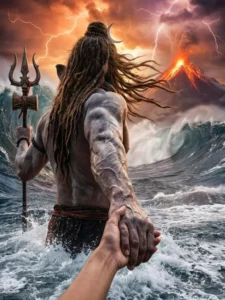
A cinematic mythological scene from a first-person POV, Lord Shiva standing in a raging ocean during a cosmic storm, Shiva holding the viewer’s hand and pulling them forward, viewer's hand like modern human hand eith no wearings and slim hand, lord shiva's powerful muscular arm in focus, wet skin texture with detailed veins, ash-smeared body, long matted hair flowing in the wind, trident (Trishul) holding in his another hand, crescent moon in his hair, tiger-skin cloth around waist, and he is only visible from back side. Massive waves crashing around, dark storm clouds, lightning striking the sky, glowing volcanic mountain erupting in the background, dramatic orange and purple sky, epic scale, divine aura, godly presence.
Ultra-realistic, cinematic lighting, shallow depth of field, motion blur on water, high contrast, volumetric fog, hyper-detailed skin and environment, image in 9:16 ratio, 8K, photorealistic, movie still, epic fantasy realism.
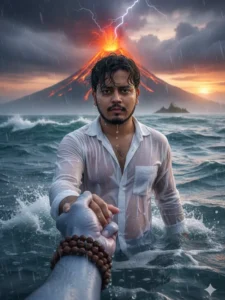
Create an ultra-realistic, hyper-detailed cinematic scene in vertical 9:16 ratio. First-person(in reference image)POV perspective. In the foreground, a powerful divine masculine hand of Lord Shiva is tightly holding my hand, as if he is guiding me(reference image)forward through rough ocean water. Lord Shiva’s hand should look strong, broad, muscular, with visible veins, wet skin texture, realistic pores, water droplets dripping, and natural wrinkles.Skin tone: Natural ash-blue tone (muted greyish blue, not bright neon). He is wearing multiple dark brown rudraksha bead bracelets around his wrist. The beads are detailed, sacred, slightly wet, and highly realistic. The camera angle shows that I am standing waist-deep in turbulent ocean water. I am facing forward toward the viewer (reference image)Don't change my face structure. My hair is wet, slightly messy, stuck to my forehead due to rain and seawater. Water droplets are visible on my face, beard (if any), neck, and collarbone. I am wearing a white shirt completely soaked with water. The fabric is thin due to wetness, slightly transparent, clinging to my body naturally. My inner chest shape is subtly visible through the wet shirt in a realistic and tasteful way (not exaggerated). The shirt shows detailed wet fabric texture, folds, transparency variation, and water dripping from sleeves. The ocean is stormy and dramatic — strong waves crashing, splashes frozen mid-motion, cinematic lighting reflecting on water surface. The water surface should have realistic foam, reflections, depth, and motion blur. In the far background, distant land is visible at the edge of the ocean, slightly foggy and atmospheric — as if I walked from that land into the middle of the sea. The land appears small and far away, with subtle mist for depth. Behind everything, a dramatic volcanic mountain is erupting. Bright orange lava flows from the peak, with glowing cracks visible on the mountain surface. Lightning strikes the top of the volcano through dark storm clouds. The sky is cinematic with sunset tones blending into dark thunderclouds — warm orange near horizon, deep grey and purple storm clouds above. Lighting style: ultra-realistic cinematic lighting, HDR, volumetric fog, high dynamic range, dramatic contrast, no color grading change from reference, natural tones, realistic skin shading.”
Video Prompt:-
Create a single continuous cinematic shot using the two uploaded images as the start and end reference. The video begins in a first-person POV. The camera shows only the front person’s shoulder, arm, and hand holding the viewer’s hand. The camera moves forward naturally, as if the viewer is walking through ocean waves. Water splashes, rain falls, lightning flashes, and a volcano erupts in the background. Without any cuts or scene changes, the camera smoothly moves around the subject in one fluid motion, maintaining the hand-holding connection. The movement feels like a natural body-mounted camera (steady but realistic). As the camera completes the movement, it ends facing me, fully revealing my face and body while I continue walking forward through the water, still holding the viewer’s hand. Technical Style: Single take, one-shot camera, no cuts, no jumps, smooth cinematic motion, realistic physics, slow motion water splashes, dramatic lighting, ultra-realistic textures, epic storm atmosphere, 4K cinematic quality, natural human movement, stable focus, no flicker.
How To Generate Your Video
And then, you see, it’s time to create the video. For that, we’ll use Google Flow. You’ll need to have the photos we generated ready. You’ll find another prompt below. Copy the video prompt. Then click on the Create Video option below. Go to the Google Flow website. First, sign up. After that, click on the New Project option. Click on New Project. You’ll get a complete interface. Below, you’ll first select an option. Frame to Video will first be selected. Change it to Frame to Video. After that, you’ll see options to upload two photos. Click on the plus option above and add the first photo you generated. In the second, add the second photo. After that, paste the video prompt you were given into the prompt and click Generate. It’ll take a few seconds. Your video will be created and ready here.
How to Get Free Credit
Now, here’s another problem. How can you solve it? For example, you might think you don’t have credits. You don’t get credits for generating videos. You can subscribe here. If you don’t have the money, you can log in with your other email address. You get 160 credits for free. You can easily generate at least 8 videos with it. Generating one video costs 20 credits. If you’re logging in for the first time, you’ll get it for free. You won’t be able to generate it just once. And understand one more thing: if you’re using any of these apps, it’s not guaranteed to provide the best results. Sometimes, errors will occur, which you’ll need to fix by regenerating them.