Trending Paaro Ai Video Editing – Many different types of videos are going viral on the internet, and you’ll see that everyone is creating them in their own style. Now I’ll show you how to create the most viral video editing style that’s currently trending. Creating this type of video is incredibly easy these days. For this, we’ll use Google Flow, which is an AI video editing platform. You can create any kind of photo or video there. It’s so simple to create that after seeing it, you’ll think, “If only I had known this earlier, I would have started with this trend first!” I’ll explain it to you and also share the prompts, which are usually quite difficult to find, but here you can use them to get such great results.
Details Of Trending Paaro Ai Video Editing
Now, we’ll explain how to create this video and what you’ll see in it. To make it, we’ll use Google Flour, and you should know that you can create your videos completely free with Google Flour. You get some credits when you log in, and you can easily create this video using those credits. Now, let’s talk about the kind of video you’ll see. You’re sitting in a car, then you get out, and then a bride also gets out. That’s the kind of scene depicted here, and because of this scene, the video has gone viral. You might have seen another type of video here, the truck video, which also went very viral. Consider this a kind of copycat editing of that video, but it’s still quite different and has also gone very viral, so it’s definitely worth creating. I’ve explained the steps. Now it’s up to you how much you understand and how good the results you achieve are.
What Is Google Flow?
It’s an AI platform where you can create videos, and most importantly, convert text to video. You write any text, and it converts it into a video. It keeps everything completely natural and creates it in a very realistic way. The best part is its understanding is completely natural. You’ll see that whatever you provide as a prompt, it edits and creates the video accordingly. It offers formats for creators, such as designs for YouTube Shorts. You can select the format from there and generate content according to your needs. We’ve generated some different types of videos using this platform in this article. You can do the same; let me explain how.
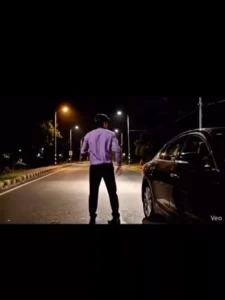
Video Prompt :-
Cinematic 4K action scene, hyper-realistic, with immersive and high-quality audio.
Visuals: A sleek, dark-colored car (like a black or deep grey sedan, similar to the image provided) is stopped on a dimly lit, empty asphalt road under a night sky, with faint streetlights in the distance. The man, who strongly resembles the person in the reference image you provided, exits the driver's side. The woman, elegantly dressed (similar to the red attire in the image), exits the passenger side. As the man turns away, the woman suddenly pulls out a handgun. She aims and fires at the man.
Camera & Lighting: The scene is shot with dramatic, low-key lighting, emphasizing shadows and highlights. A slight slow-motion effect is applied during the shooting sequence.
Audio: Clear sound of car doors thudding shut. Subtle ambient night sounds. A sudden, sharp gunshot sound effect with a slight echo immediately followed by a dramatic thud as the man falls. A tense, low orchestral cinematic music score subtly swells during the shooting moment, then fades out."
How To Generate Your Video?
Now let’s understand how we can create our video. If we want to generate this video, we already have the prompt ready. You’ll see that I’ve provided different types here, and you’ll create the video using them. Copy the prompt, and then you’ll find a “Create Video” button below. Click on it, and you’ll be taken directly to the website. Sign up there, and then you’ll find a “New Project” option. Click on it. There you’ll find three or four options: Text to Video, Frame to Video, and Ingredients. Here, you can select either Frame to Video or Ingredients. If you want to create a landscape video, the second option is best for you. If you want a portrait video, select Frame to Video. It’s up to you; select whatever you need. Then you’ll find a plus icon below. Go to the first frame and upload your selfie there. After that, paste the prompt that was provided, and then click “Generate.” It will take a few seconds, and your video will be ready once the counter reaches 100.
Conclusion
I hope you have created a viral video like this by following this process, as I have explained the editing process step by step and shown you exactly how to do it. Now, create your own video and share it with us so we can see the editing you’ve done. We’ll give you feedback on what you can improve and how you created it.