Speed Ramp Capcut Template – In today’s digital landscape, excelling on any social media platform requires strong editing skills. Whether you are creating still images—in which case you need high-quality photographs—or producing video content, excellent visuals are essential. I would like to introduce you to one of the most trending editing styles of the moment: “Speed Ramping.” This technique is currently being used by a vast number of creators to produce highly unique and distinctive videos. If you are interested in creating such unique edits yourself, you can do so with remarkable ease by utilizing CapCut templates. This is particularly helpful because Speed Ramping can be a somewhat complex process, making it challenging for beginners to execute manually. If you read this article carefully, you will gain a comprehensive understanding of what Speed Ramping is, how to apply it using templates, what the optimal settings are, and—finally—some valuable tips to help your content go viral.
What Is A Speed Ramp?
Essentially, it is an effect where the video speed fluctuates—starting fast and then slowing down, or vice versa. The speed changes dynamically, adapting to the specific action taking place on screen. For instance, slow motion might be applied during a jump, followed by a switch to fast motion immediately after the landing. Similarly, the speed effects often shift rapidly in sync with the musical beat; this is precisely why this technique is referred to as a “speed ramp.” You, too, can create such unique edits with absolute ease—simply by adding your video clips.
Why This Ramp Editing Is So Virl?
Speed ramp editing is incredibly viral right now. It looks quite cinematic and professional, and it seems to completely captivate the audience’s attention. Since the video constantly shifts between fast and slow motion, viewers watch it with great interest. It syncs beautifully with the beat, making the video look highly engaging. Moreover, Instagram gives a significant boost to such trending and unique editing styles. You should try creating a video like this yourself; anyone who has produced content using this technique has received an excellent response. I previously taught a tutorial on this editing style, and it was extremely well-received by the audience.




How To Use Speed Ramp Capcut Template
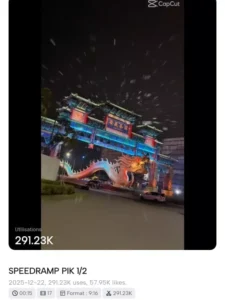
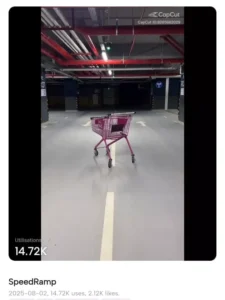
How can you edit using this template? Nowadays, editing is no longer a difficult task; you simply need to have the right template. I have already shared several templates within this article to ensure you encounter no difficulties. You just need to utilize the template provided here. Let me explain how to do that. You will find a “Check Template” button included in this article. If you click on it, it will open directly within the CapCut application. Once there, a preview video will be displayed; simply click on it, add your own clips, and proceed to create your video. Please note that this feature will not work for you if you do not have the CapCut application installed on your device; it will function only if you already have the app. Alternatively—if you prefer not to use the link provided here—you can navigate directly to the “Templates” section within the CapCut application itself. There, you can search for any specific template you desire—for instance, if you are looking for a “Speed Ramp” style edit—and you will find a wide variety of different templates to choose from.
Manual process Of Speed Ramp Editing
What is the manual editing process for creating a speed ramp? Let me explain. First, mark your beats. Next, select the specific clip you wish to edit. Then, when you proceed to slow down the speed, you will need to create a custom graph. You will find a “Graph” option available there, offering styles such as “Up-to-Down” and “Down-to-Up.” You should select the appropriate style by adjusting it to align with the beat. The beginning of the clip will remain at a normal speed; subsequently, you will continue applying this graph-based speed adjustment to all the remaining clips.
Conclusion
You can very easily create a viral edit featuring speed ramps. I hope you enjoyed this editing tutorial, as I have made every effort in this article to explain everything clearly; you should definitely give it a try. People really love this style. Simply add your video clips to fit the specific template. प