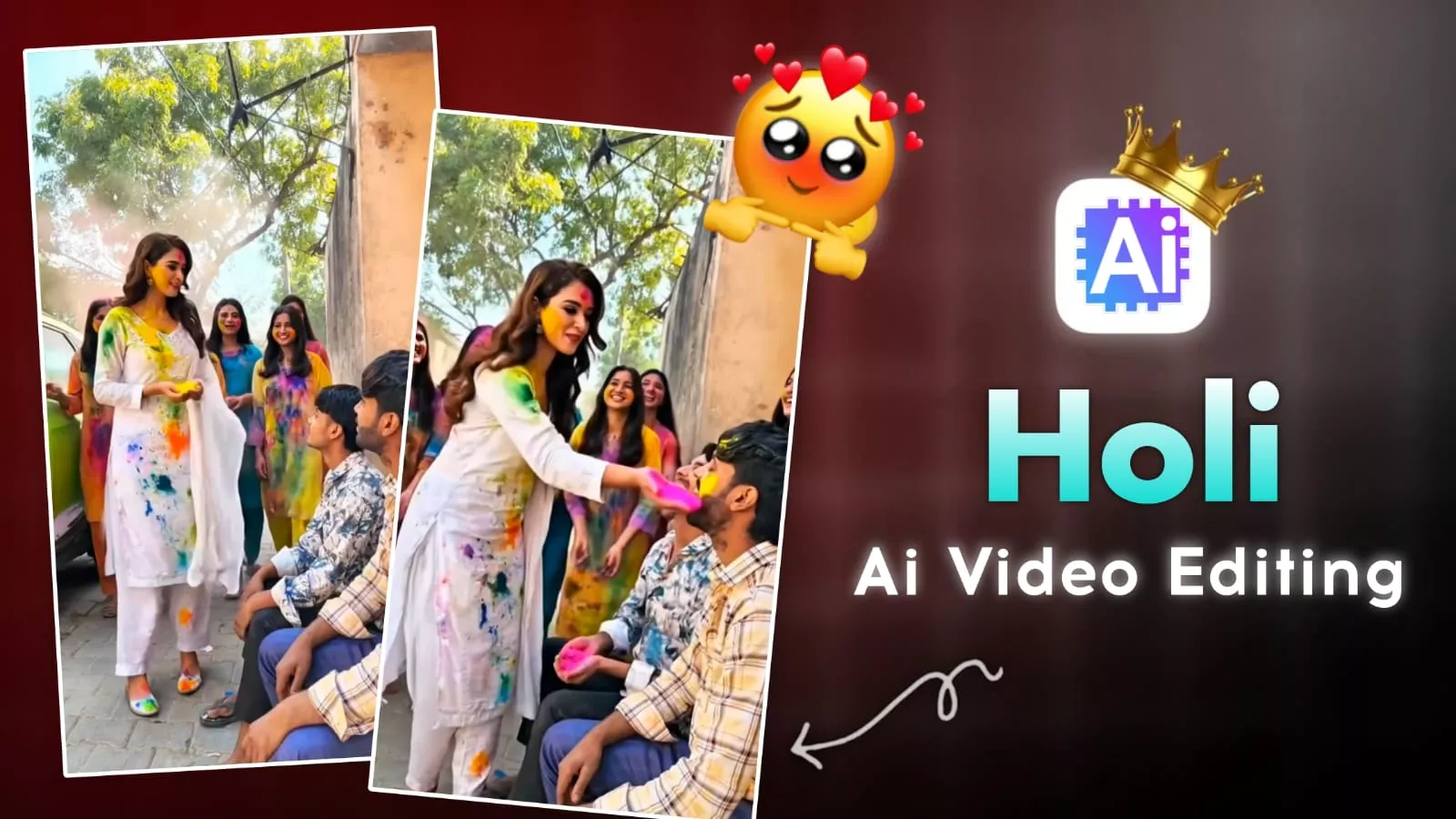
Holi Ai Video Editing Prompt – You will see that the Holi season is coming now and as the time of Holi comes closer, trends will go viral on social media accordingly. Some people will use photos here. Some people will use videos and I have prepared something creative for you. I have generated a Holi video for you and how to create it. Today in this article we will learn. What will be there in it. How is it so unique. How can people like it so much. We will talk about all those things in this article. If you also want to create a Holi editing. This article will be told for you. Which will be related to it. Rest of the extra and baseless things will not be explained to you.
Details Of Holi Ai Video Editing Prompt
What are the things that might seem unique to you? This entire video could be a unique approach. If you’re watching it for the first time, or if you’ve seen videos before, it might seem a little off. But for those who are completely new to it, it will feel completely different. Now, watch this: You’ll be sitting in one place, and what happens there. Suddenly, a car will arrive. Behind it, some girls, dressed in Holi colors, will come running. Then, a girl will emerge from the car. She will apply color to your cheeks and wish you Happy Holi. This is the concept of this video. We’ll create it using just a prompt and show you how to use photos in it to achieve the perfect result. How can we generate it?
How To Prepare Your Clip
To create this video, selecting the right photo is crucial. If you select and import the correct photo, you’ll always get a 100% perfect result. For a perfect result, you’ll need to select a photo in a way that imagining you’re sitting off to the side, with a path behind you. You can also do this in this style: take a chair, sit off to the side, and point the camera at the camera and ask the cameraman to click the photo from the front. You don’t have to look into the camera; instead, look in front of you, as if your photo is being taken from the left. You have to look straight ahead. From there, use this photo. If you create a video using this photo, the video will generate a result that’s exactly like the one currently going viral on social media, and as I explained in the introduction.
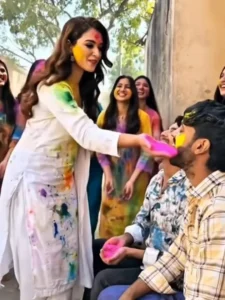
Use uploaded photo as main subject (boy sitting, same face and outfit unchanged). Bright Indian Holi festival daytime. A colorful car arrives in slow motion, decorated with gulal. Behind it, joyful girls run throwing pink, yellow, and blue colors in the air. Car stops near the boy. A girl wearing white salwar kameez with Holi colors on her clothes steps out, walks to him smiling, gently applies pink color on his cheeks and says “Happy Holi.” Cinematic lighting, slow motion color splash, realistic, 4K, Bollywood festive vibe.
How To Generate your Video
We’ve provided you with a prompt to generate a video. We’ve explained the photo. Now, what you need to do is copy the prompt. Then, below, you’ll find the “Create Video” option. Click on it; it’s a link to Google+. Your video is generated using this prompt. Go to the website and sign up first. You’ll find the “New Project” option there. Go to the “New Project” option, change the “Text to Video” format, and select “Frame to Video.” Then, go to the “Plus” option. Go to the “Plus” option. Upload the same photo and paste the copied prompt. Simply click “Generate” and wait a few seconds. Your video will be created and ready.
How To Expand Your Video
Now I have another idea, like if you want to expand your video in it, write as if you have created the video. Your video is ready till there. Now if you want to add something else in it, then first of all you have to keep a prompt ready. To prepare it, you have to go to chat secret. Explain the story. Then tell in it what you have to do with the next part, like if you have generated your video through Google Flow, then what you have to do there. Do it in desktop mode, now you will get a mobile option there. From there you can expand your video to the next frame. What you have to do for that. Just click on the plus option there, paste that prompt and generate it. Your video will be ready exactly according to the next frame.