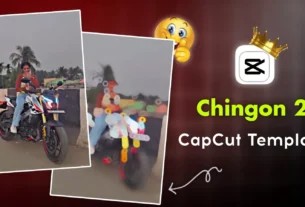
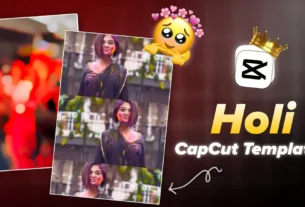
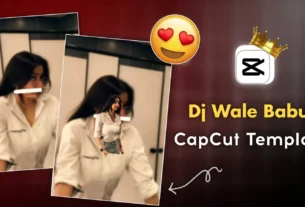
Character Intro Capcut Template – You must have seen videos like this where a character’s introduction is shown. For example, in a movie, a series, or any video, a character appears, their image freezes, turns red, and then their introduction is displayed. Their name and other details are shown on the screen. So I thought, why not write an article about this and explain how this kind of editing can be done? I’ll keep it simple because doing this kind of editing manually can be quite time-consuming. I’ll explain the manual editing process, and also the automatic process using templates. We’ll discuss how you can create this effect.
Details Of Character Intro Capcut Template
In this, you’ll see some videos during the editing process. Understand this properly. This is what you’ll see: Initially, a normal video will play, like you’re coming from somewhere. Then, a photo of you will appear. Your name will be written on that photo, and an effect will be applied to it. This is our character intro effect, and we’ll create it in two ways: manually and automatically. We have a CapCut template, and we also have the full editing process within the CapCut application. I’ll explain both to you, and both are quite simple. However, the template process is the easiest. If you want to learn good editing skills, you should learn the editing process using the CapCut application.
How To Edit In Capcut
First, let’s talk about the manual process. How can we do it? What do we need to do? We need to add a video and create this intro edit. We need to show the character in it. Don’t make the video too long, okay? You can select the audio according to your preference. After your video ends, go to the end. Apply an effect called “Freeze Frame.” This will freeze the ending part of your video. Then, delete everything after this frozen frame. The frame that was created will be like a still image. Now, what you need to do is select it, go to filters, and select a red filter. Choose any red filter that looks good on your image. Then, go to the text option and write the name. You can choose the text color according to your preference. Yellow will look best on red. After that, go to effects and select the “Check” effect. Set its settings to 10-10 percent. Export it, and your video is ready.


How To Use Character Intro Capcut Template
Creating a video with this template is incredibly easy. The template is provided here. Below the image, you’ll find a “Check Template” button. Clicking on it will open the template directly in CapCut, where you’ll see a preview of the video. You’ll be able to see what kind of editing will be applied. Then, click on “Use Template.” After clicking, add your video clips. Then click “Next.” You’ll then see a final preview of your video, showing the completed editing. Once you’re satisfied with the editing, you can export it. The export settings should be 1080p at 30fps.
Conclusion
This is how you can create viral intro videos like this, and I’ve explained both methods to you. It’s not like you can only create it using one method. If one doesn’t work for you, try the other one and complete your editing. I’ve shared all the details with you and explained everything. Now let us know, and we’ll bring you even more new things.