Normal To 4k High Quality Photo Editing Prompts – How can you easily convert any of your standard photos into 4K quality images? In today’s world, performing such a conversion is no longer a difficult task. With just a little assistance, you can transform ordinary photos into 4K resolution; in this article, we will learn exactly how to do this, step by step. We will explore the specific methods involved and discover how to achieve outstanding results. If you are interested in creating viral-worthy photos, this article will demonstrate how to generate such images using tools like Google or ChatGPT. It is crucial to understand the underlying process for utilizing these tools effectively, and you will also learn the correct techniques for crafting the appropriate prompts required to create these images.
Details Of Normal To 4k High Quality Photo Editing Prompts
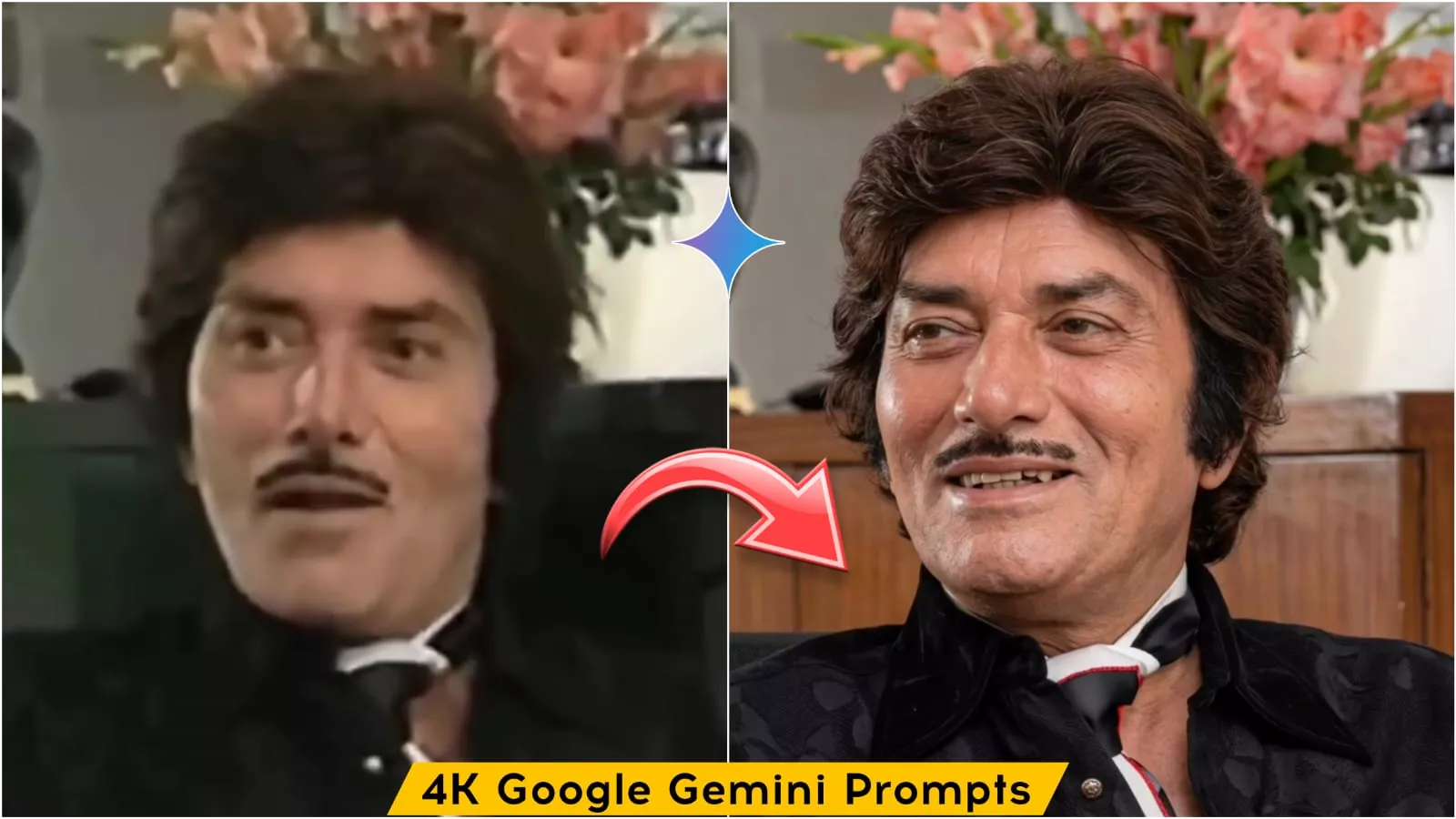
The remarkable thing about this process is that if we utilize Gemini, it takes our ordinary photos—specifically those that are blurry or damaged—and restores them, effortlessly converting them into stunning 4K resolution. The best part is that we don’t have to watch any ads or spend any money to achieve this; we simply use the right prompt, and our photo is generated with a completely professional finish. In this article, we will learn exactly how to create such photos and discover the impressive results you can expect to achieve.
Which Type of Photos This Prompt Works
Look, this will work particularly well on those photos where your face is not clearly visible. It will restore such images; as you may have noticed, many old photographs tend to accumulate in our homes—photos of your grandparents, great-grandparents, or other relatives. If these photos have deteriorated over time, you can simply snap a picture of them with your phone and use this tool to restore the faces within them. I have included the specific prompts for this purpose here; furthermore, in addition to 4K prompts, you will also find various other restoration prompts featured in this article. The accompanying images will help you easily understand which type of prompt is used to generate a specific kind of restored photo.
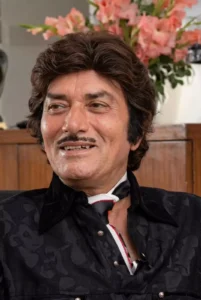
[Subject & Composition]: Exact match of the provided reference image. Reproduce the identity, expression, pose, angle, outfit, hairstyle, and overall mood perfectly without altering facial features.
[Quality & Restoration]: Ultra-realistic, 8K+ resolution, ultimate image restoration,
512K-grade texture mapping, zero noise, zero motion blur, extremely sharp, masterpiece, award-winning high-end photography.
[Facial Detailing]: Absolute maximum detailing. Extreme micro-skin texture, visible pores, natural fine lines, ultra-sharp facial contours, flawless skin realism.
Crystal-clear eyes with perfectly sharp micro-reflections.
[Lighting & Colors]: High-end studio lighting, HDR color science, ultra-clean tonal gradients, flawless highlight-to-shadow balance, perfect skin tone accuracy, lifelike vibrant colors.
[Camera & Optics]: Premium DSLR
aesthetic, 85mm lens, f/1.4 aperture, hyper-depth cinematic background. Super-clean bokeh effect, perfect subject isolation, pristine photographic clarity, 9:16 aspect ratio framing.
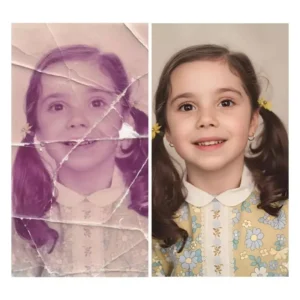
“Restore and enhance this damaged photo to a hyper-realistic, ultra-detailed image, 16K DSLR quality. Fix scratches, tears, noise, and blurriness. Enhance colors to vivid, vibrant tones while keeping natural skin tones. Perfectly sharpen details in face, eyes, hair, and clothing. Add realistic lighting, shadows, and depth of field. Photoshop-level professional retouching. High dynamic range, ultra-HD, lifelike textures, cinematic finish, crisp and clean background, fully restored and enhanced version of the original photo.”
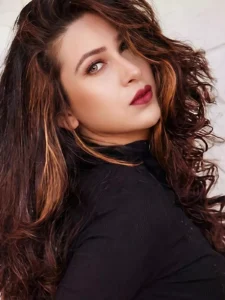
4K,Ultra high-resolution photo enhancement and upscaling. Transform this image into a crystal-clear, detailed, realistic quality. Remove noise, blur, grain, scratches, and compression artifacts. Sharpen all important details while keeping natural texture. Restore faded colors, balance exposure, increase clarity and contrast. Improve skin tone and facial features naturally, without altering identity. Repair old damage or missing details. Produce a clean, vibrant, ultra-realistic result.same ratio
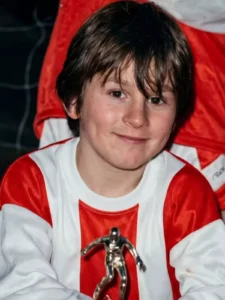
lifelike textures, cinematic finish, crisp and clean background, fully restored and enhanced version of the original photo.”
How To Use these prompts
Using this is absolutely simple. First, copy the prompt corresponding to the specific style of photo you wish to create. Next, scroll down to find the “Create Image” option; I have provided a link to Google Gemini here, though you can also utilize other tools such as ChatGPT. Once there, you will first need to paste prompt and click the plus icon to upload the photo you wish to enhance. Finally, click the “Generate” button. After waiting just a few seconds, the tool will process your image, delivering results that are significantly superior to the original.
Conclusion
When performing this type of editing, you must avoid making certain common beginner mistakes. Under no circumstances should you write a short or brief prompt; your instructions must be absolutely clear. If you are using low-quality photos, ensure that you utilize a precise and accurate prompt. Do not expect to achieve perfect results on your very first attempt, as the initial outcome may not necessarily be excellent. You will likely need to try two or three times before you finally obtain a satisfactory result.