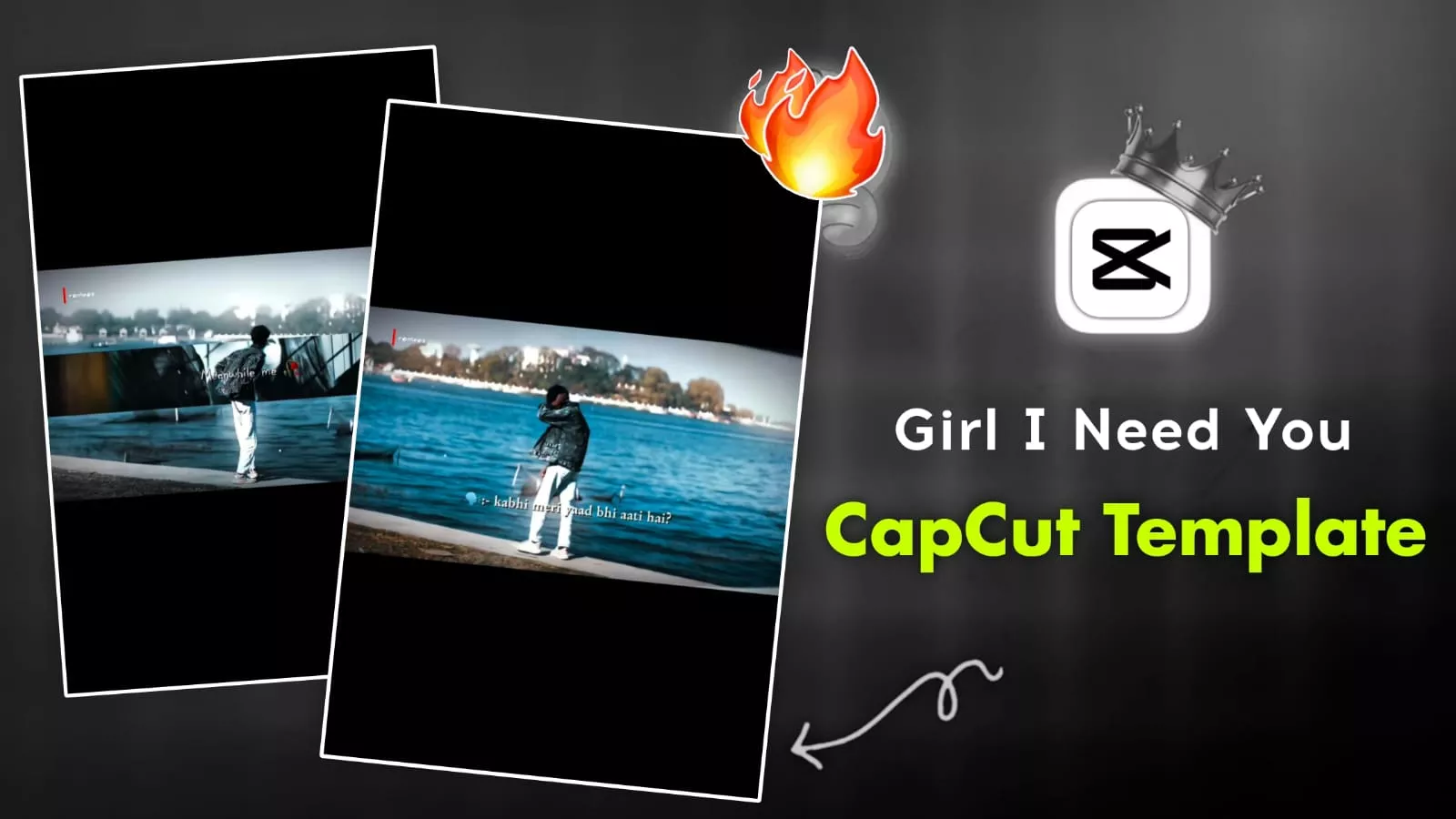
Girl I Need You CapCut Template – I’ve seen that the entire Instagram is filled with this kind of editing. Everyone is doing this kind of editing, and let me tell you. This kind of editing is a bit difficult these days. Only those who know editing a little better will be able to do it, but he’s your brother. There’s no need to worry, because I’ll tell you a method that will make your editing very easy. For this, I’ll share a template with you, which will be a Capcut template. Your video will be edited in a completely professional and perfect way, just like the viral one. You can easily complete this editing by following what I’m telling you.
Breakdown – Girl I Need You CapCut Template
Let’s go through the full breakdown and explain it to you. What kind of editing will you see? We’ll go over everything thoroughly and explain how you can do proper editing. Normal editing, like you’re wandering around feeling sad. A video is shown. Initially, it’s a normal video. Slow motion is used effectively. Then, as the video progresses, a masking effect is used. This masking effect requires a lot of effort to create. Only a professional editor can create it. It’s added to an overlay, masked, and then made full screen. The entire setup is well-done. Then, the video behind us is duplicated and brought into the overlay. Its background is removed. Now, this masked overlay that we took is behind our background, and that’s what makes it so attractive.
CHECKOUT NEW TRENDING TEMPLATE
Uses Case For This Template :-
I’ll tell you which type of video would be perfect for this, and why. You’ll understand for yourself. Normally, in this type of editing, we record a video from one side and then use it. What happens is that this editing presents things like this. For example, a flashback effect occurs. When you’re sad, this old memory comes to mind. Similarly, the video here shows an old flashback. Now, what type of video will you use here? Understand what you do. Imagine walking in a place, like on a road. While walking like this, record a video of yourself from a low angle and give a reaction. Using only this type of video will give you very good results. You will know which types of videos not to use. For this, first of all, avoid dance videos and bike videos. As I mentioned, just use those types of videos and you will get very good results.

How To Create Video Using This Template ?
Now, to see how to make this video, I’ve had a template created for you, or you can create one yourself, because it took a lot of effort on my part. This was a normal editing process, with people suggesting you could edit it this way or that way, but I created a template directly for you so you don’t have any problems. You can easily create your video. You’ll find the template in the article here. This is a template for the CapCut application, and it works within that framework, so you don’t need to go anywhere else. You’ll find the “Check Template” button there. Click on it. This will open the CapCut application, where you’ll be shown the entire video. Watch everything carefully. Then, below, you’ll find the “Use Template” option. From there, add your video clip. Then, click “Next” to create your video. Consider your editing to be absolutely complete.
Output customization plus export settings.
If you want to export your output even better, I always recommend applying the same settings. Whenever you use a template, you must also upload it to the Shot platform. For this, you can set 1080p 30 to 60fps. This video quality will be the best. For this 9:16 format, if you want to customize it, you’ll find an option before exporting: Edit More. For example, there’s something different in this: you want to add a cross effect initially. This effect isn’t an animation. You need to go to the animation option. First, select the clip and then search for “cross.” You’ll find it there. Select it and export it according to your clip’s length. You can set the duration and export it.